
Quick clocking
employees identify themselves and clock in or out directly, without navigating the portal.
Tablet kiosk
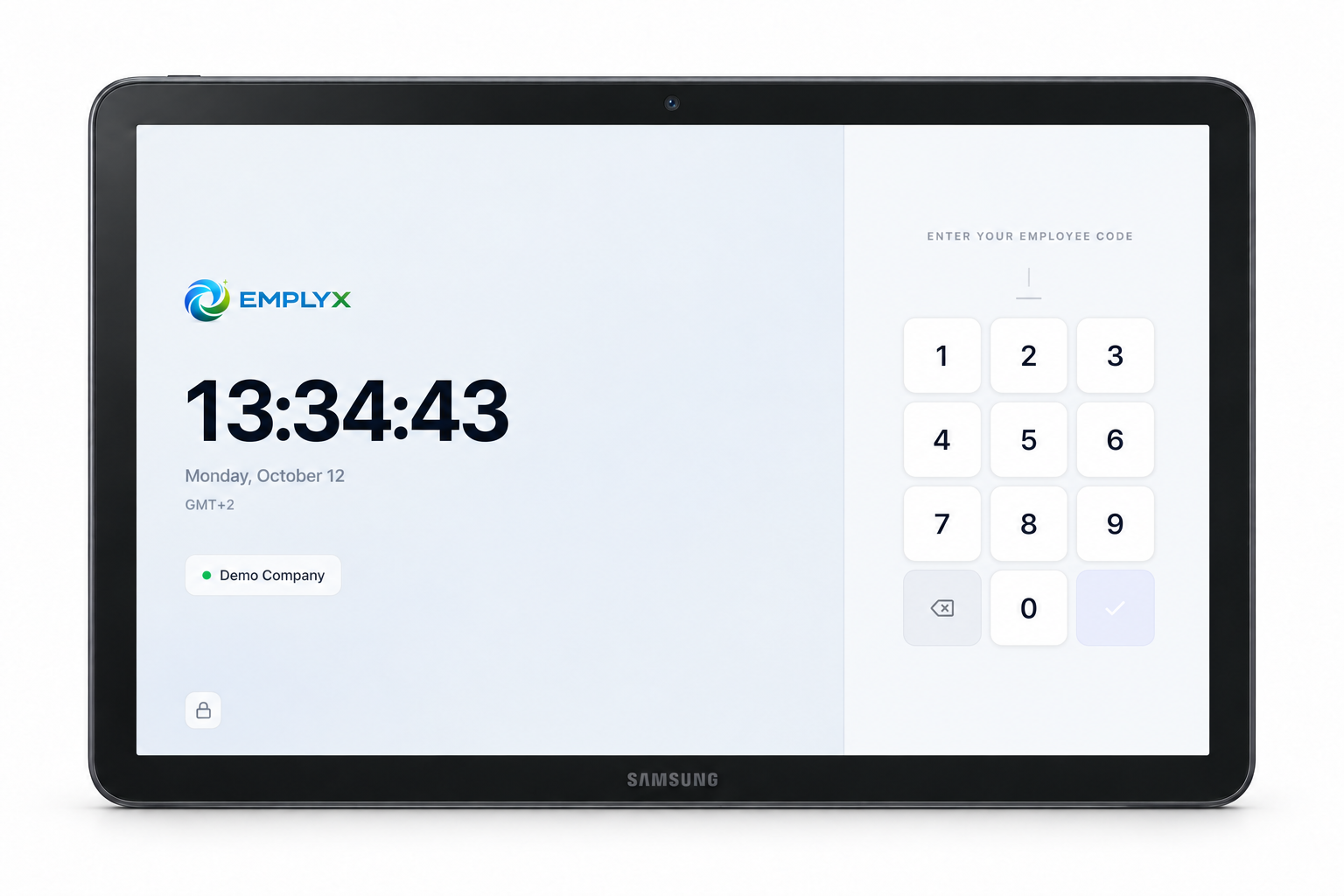
Turn any Android tablet into an Emplyx terminal. Configure kiosk lockdown for dedicated terminal use, with quick clocking, the employee portal or both on the same device.
ANDROID / EMPLYX
Use your Android tablet. Samsung or another brand, with the Emplyx Kiosk application.
Dedicated terminal use. Device lockdown through managed Android configuration.
Three modes. Quick clocking, portal or mixed, according to the needs of each location.
THREE MODES
employees identify themselves and clock in or out directly, without navigating the portal.
after identifying themselves, employees access the employee portal and the information and actions enabled for them.
combines quick clocking with access to the portal from the same terminal.
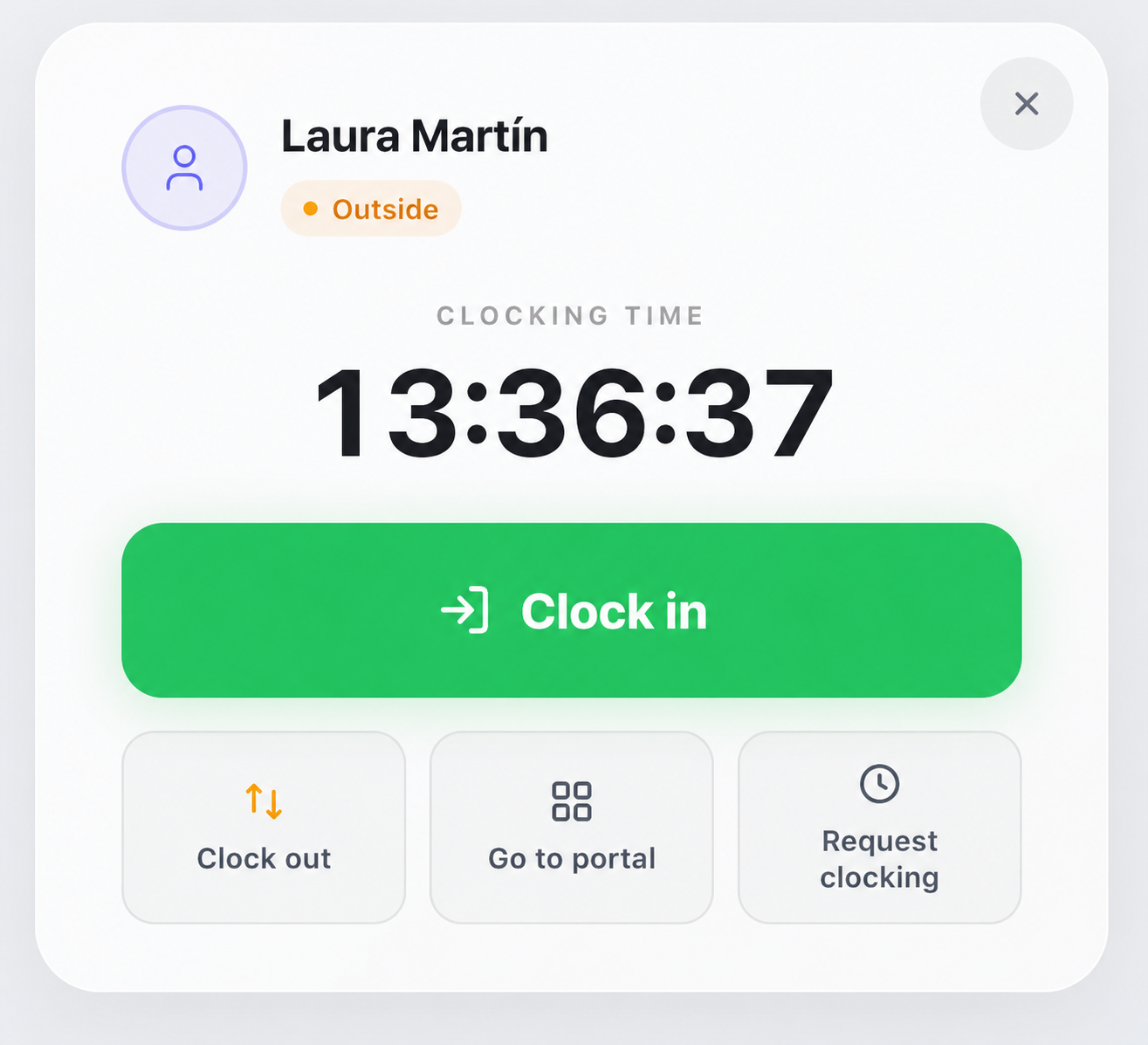
Laura identifies herself and clocks in or out. In mixed mode, she can also open the portal from this screen.
English screenshots with example data. Available features depend on the enabled modules and permissions.
AN EXAMPLE IN YOUR COMPANY
Laura identifies herself on the tablet at her location and clocks in. In mixed mode, she can open the portal to check her shift and balances or submit a request.
THE RESULT
Clocking and personal requests from the same terminal, with individual access permissions.Install the Emplyx Kiosk application, link the tablet to your company terminal and configure its mode. Connect the device to the Internet and provision Android as a managed device to keep it locked to the application. Mobile connectivity depends on the tablet and the subscribed data service.
BEFORE STARTING
The kiosk works on any Android tablet. Camera, NFC reader and connectivity depend on the model; we review these components and prepare the managed configuration for dedicated terminal use.
It can be the focus of your proposal. We define the clocking service and portal features you need, with the corresponding modules and permissions.
We review your case, the team that will use it, and the necessary information sources. The proposal specifies functions, accesses, connections, and contracting conditions before starting.
THEY CAN WORK TOGETHER
Add other solutions when your operations require it. Scope and connections are defined in your proposal.
Clock-ins, workday, and hour balances, with the necessary detail to review each day.
Explore solutionPersonal access to the workday, requests, documents, and company information.
Explore solutionShifts, availability, and coverage to organize teams and workplaces.
Explore solutionSTART WITH WHAT YOU NEED
Tell us what you want to solve. We define with you the modules, access, and connections your company needs.